The Eclipse team will be starting a series or Webinars in June focused on the Callisto release. The BIRT and DTP teams have the pleasure of doing the first on June 5. We will be focusing on DTP, BIRT, and RCP integration.
If you haven't already signed up, check out Ian's Blog or go to the Eclipse site and register.
Tuesday, May 30, 2006
Callisto Webinar

Wednesday, May 24, 2006
Joined Data Sets with BIRT 2.1
With the upcoming Callisto release BIRT 2.1 will support Joined Data Sets. Up to this point BIRT has supported multiple data sources, but did not present an easy way to join data from these data sources. If I were building a BIRT report that encapsulated HR data from an Oracle database and Financial data from a MS-SQL server, combining the data in a single output table was very cumbersome.
To address this problem the BIRT team has developed a new type of BIRT Data Set that allows joining of traditional data sets. The Joined Data Set allows the above scenario to be accomplished using Inner and Outer Joins between two data sets. A common key is defined, for join purposes, in the Data Set wizard.
Eg.
For simplicity I will use two CSV files as data sources. The CSV files have the following structure.
Rep_Region.csv
region, sales_repr
East, Rep_A
East, Rep_B
Central, Rep_C
Rep_Sold.csv
sales_rep,quantity_sold,quantity_purchased
Rep_A, 20, 22
Rep_B, 33, 44
Rep_D, 10, 10
The first file, lists the region and the sales rep. The second file lists the sales rep, the quantity of widgets sold and the quantity of widgets purchased from a supplier. Rep_C exists in the first file and not the second. Rep_D exists in the second but not the first. Also notice that the sales rep column name is different in the two files.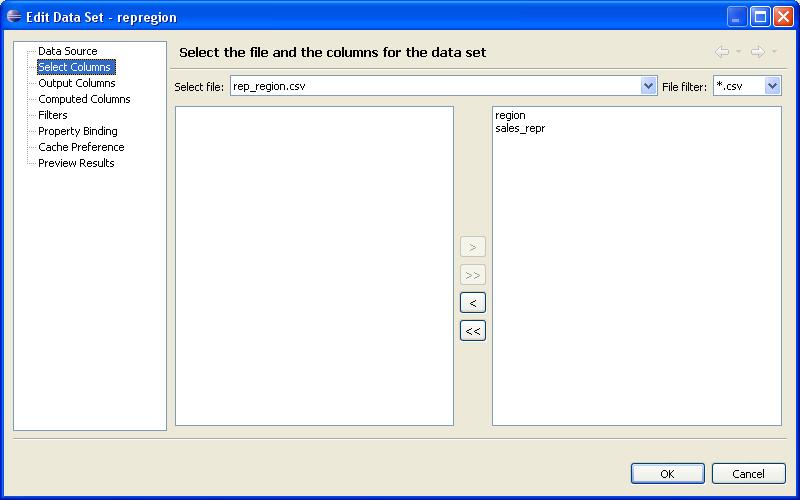
Create the first data set in BIRT using the CSV data source.
Create the second data set in BIRT using the CSV data source.
Create the new joined data set by right clicking on Data Sets and choosing “New Joined Data Set”.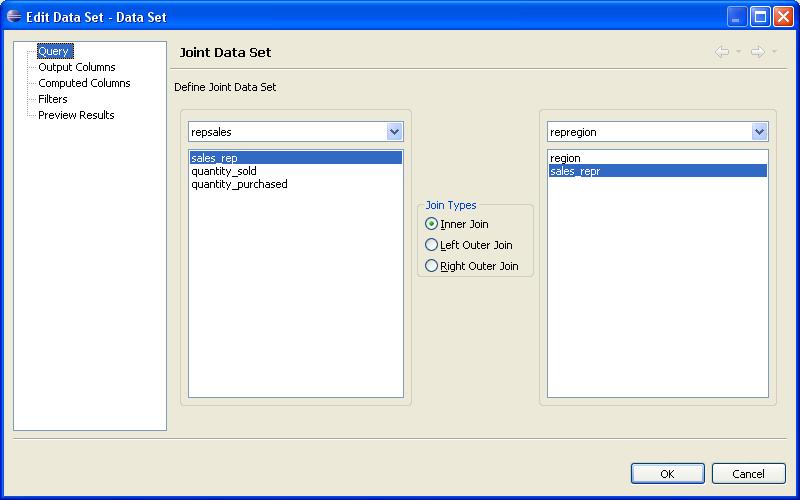
In the Data Set Wizard, map the sales_rep column from our first CSV file to the sales_repr column in the second CSV file. The data sets can then be joined using an Inner, Left Outer, or Right Outer Join.
Additionally, joined data sets support Computed columns and Filters.
After dragging the new data set onto the report the following output is displayed.
Inner Join.
Left Outer Join.
Right Outer Join.
This feature is available today in the 2.1 RC3 download.
Thursday, April 27, 2006
Get Some Style
In general, I have been working on proof of concept technical details in my BIRT reports. I figured that if I could get it to work, someone else would make it look good (typical developer). At the MySql conference I had the opportunity to present to the MySql users about BIRT, and I wanted my reports to look good. Not only that I wanted to make them look good quickly.
So I have a simple tabular report that looks like this: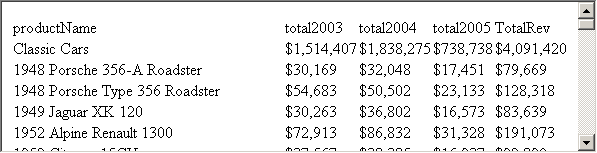
What I would like to do is format it to make it distinctive. I also want to do that in as few operations as possible. The slowest way that I could do it would be to go through the property editor setting properties on each of the controls.
Clearly the property editor works, but it involves a lot of mouse clicks. So the next approach would be to create Styles and apply the style to each row. This technique is significantly faster, but it is still not fast enough.
What I really want to do is just apply styles using Cascading Style Sheets. If you select the table element you will see that under Style one of the options is Import CSS. Seems like this would be a reasonable selection.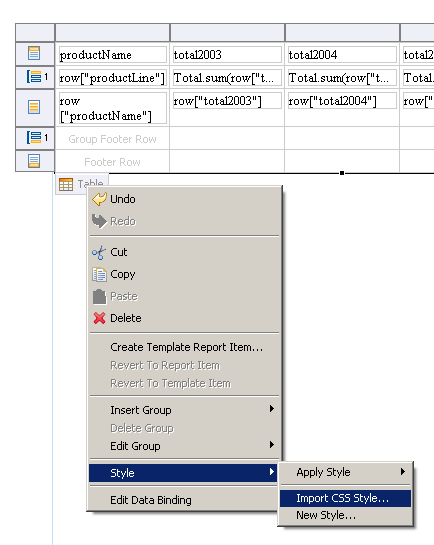

When you select this option, it brings you to a menu which has you select a CSS file and then gives you an option to select certain elements within the style sheet. Doing this will add style to your report as shown in the outline view.
Now if you do this, you can select each element (row, cell, etc.) and apply a style from your list of styles, but the styles that you import will not automatically be applied to your tables. This is because that the BIRT elements have standard names associated with each slot. In order for your style sheets to automatically be applied to elements in your report you have to use these standard names.
The only place I found this documented was in the PredefineStyle class of the model.metadata. I grabbed the JavaDoc comment here for your review:
BIRT defines a fixed set of predefined styles. These style correspond to certain report elements, or element slots. For example, there is a style * for chart, for list headers, for table footers and so on.
The set of predefined styles is part of the element design and is fixed by the development team. Fixed properties of predefined styles includes the internal name and display name. However, the property values for the style are set in a design or template and are part of the design itself.
This class represents the invariant part of the predefined styles. It is used to create a style element within a new design.
Note that predefined styles are identified with an internal name of element name, slot name or their combination. For example, to select a list, use the "list" style. To select a list header, use the "list-header" style. Styles also have a display name id which is used to get localized display name, but the internal name remains fixed across all locales. This ensures that a design created in one locale can be used in another.
So the way I read this, is if you use the invariant name of the pre-defined style than you do not need to go through the clicks of applying the style, your styles will be automatically adopted when you import the style. I tested this and when I used the appropriate names in my CSS, my report design changed from the unformatted text shown at the top of the screen to the following:
So I was able to do all of this in seven mouse clicks, I think that is getting really close. Now it is not perfect (don't shoot the messenger) but it is close.
The one major problem that I see with the current implementation is that you are not actually using the CSS when you do the import, instead you are making a copy of the CSS classes and id's into your report. This means that if you make a change to your CSS, that change will not be propogated to the reports. The only way to refresh your styles is to delete all of them and re-import the new styles.
It appears that the solution is to import the style into a library, then you should be able to use the library within your report. So far, I have not been able to get this to work, but it looks like there has been some on-going work in the 2.1 build that is aimed at addressing this. I will be testing the functionality in one of the next 2.1 builds and will report back if there are any changes.
If any one has had better luck with styles, please let me know.
Finally, in case you are unable to guess at the proper invariant style names, I have provided the names that I have used successfully.
.table-header
.table-detail
.table-footer
.table-group-header-1 (can be nested 1-9)
.table-group-footer-1 (can be nested 1-9)
Good luck,
Scott
Friday, April 07, 2006
BIRT and the eval command
While JavaScript’s eval function has been around for quite some time, I thought it might be a good idea to show an example of it working with BIRT. BIRT uses the Rhino engine for server side scripting and has an event model that allows writing handlers in JavaScript or Java. These handlers will be executed at key locations during the report generation and rendering processes. When implementing these in JavaScript the developer has access to the JavaScript native functions. The scripts that are implemented are stored within the XML report design. In addition to the event handlers, the BIRT Expression Builder uses JavaScript. The Expression Builder is used to assign values or modify attributes for a report element.. For example, evaluating the URL for a hyperlink or setting the value of a Data element is accomplished using the Expression Builder. The key to the expression builder is that it always returns a value. This is generally just a data value like row[“CustomerNumber”], but it also supports conditional logic and access to native JavaScript functions.
This gets me to the eval function. What if I want the script that executes in the expression builder to be dynamic? This may be useful when the calling application desires a certain Java class, not know at runtime, be loaded or the script that is used needs to be customized at runtime. This can be achieved in BIRT by adding a string parameter to the report that contains the script and using eval on the Expression Builder where the script is needed.
To illustrate I have created the following simple Java class. I will be using the getter methods for each of the three test cases. The first returns an int, the second a String and the third a HashMap. Make sure that this class is in WEB-INF/lib directory for the viewer plugin.
package my.simple.code;
import java.util.HashMap;
public class EvalTest {
private int testOne;
private String testTwo;
private HashMap testThree;
public int getTestOne() {
return testOne;
}
public String getTestTwo() {
return testTwo;
}
public HashMap getTestThree() {
return testThree;
}
public EvalTest() {
testOne=5;
testTwo="My Test String";
testThree = new HashMap();
testThree.put("hm0", "Test String Map 0");
testThree.put("hm1", "Test String Map 1");
testThree.put("hm2", "Test String Map 2");
}
}
Now create a report with the following elements.
Element - Value
Label – “Command to be Executed”
Data - params["JavaScriptEvalCommand"]
Label – Results of Command
Data - eval(params["JavaScriptEvalCommand"]);
Next add a String Parameter named JavaScriptEvalCommand and set its default value to
x =new Packages.my.simple.code.EvalTest(); y=x.getTestThree(); y.get("hm2");
Run the report. The output will be as follows:
Command To Be Executed
x =new Packages.my.simple.code.EvalTest(); y=x.getTestThree(); y.get("hm2");
Results of the Command
Test String Map 2
Now change the parameter to call test one and two, and the results should reflect what is in the Java class.
Parameter Value or test one and two:
x =new Packages.my.simple.code.EvalTest(); y=x.getTestTwo();
x =new Packages.my.simple.code.EvalTest(); y=x.getTestOne();
Using eval is powerful, but it does come with some drawbacks. First and foremost is that report debugging becomes more complex. Using a Java Event Handler is probably a better solution in most cases. Another issue when using the eval function within the Expression Builder is that you can only return one value. Finally parameter validation can be very difficult.
Monday, April 03, 2006
BIRT 2.1 Release Plan Update
Release 2.1 of BIRT continues to move forward. The development team has been hard at work re-factoring the project to adopt the new packaging aspects that are a part of the Callisto release. The next release of BIRT will be the RC1 release.
As stated before, the primary function that the 2.1 build addresses is to achieve compatibility with the Callisto Synchronization release.
That said there are some new features and fixes that are fairly exciting in the 2.1 release are. For those of you that do not want to have a look at the full document, here is a list of my favorites:
- Reportlet HTML Output: partial DHTML pages
- Improved Page Breaks: particularly for the html reports
- Total Page count
- Enhanced ODA support: BIRT is moving to the DTP ODA 3.0 Framework
- Join Two Data Sets: BIRT report developers can now join data sets
- Simplify Java Event Handler creation: As easy as doing File New -> Other -> BIRT ...
- Multiple Master Pages: Your report can now have portrait and landscape orientation in the same report
This is just a small set of the new functions, please have a look at the full project plan if you are interested. In addition to these fixes, the BIRT team has identified a number of fixes and other enhancements that are targeted for the 2.1 release. Please go to the project planning page if you want to check on the status of the fixes targeted for each release of the product
Tuesday, March 28, 2006
Recovering from EclipseConsternation
Dictionary.com defines consternation as a state of paralyzing dismay. Ok this has to do with fear, but I needed a "Con" word and it seemed appropriate. The number of projects and companies embedding and working with Eclipse is dizzying. Eclipse projects and plugins that do amazing things are popping up everywhere and it appears that we may be only scratching the surface.
Being on the BIRT PMC, my chief responsibility is BIRT and its adoption. It was very informative to see what some BIRT users are doing with the technology. Of particular interest is the JFire project. JFire is an Open Source ERP system focused on distributed trading. The JFire client contains a customized BIRT Perspective. This allows their users to customize report layouts and save them to the JFire server. Additionally they developed and ODA to read JDO objects, which JFire is based on. Last but not least reports are displayed in a browser or the JFire RCP application. This is a project that is definitely worth taking a look at, especially if you are in the process of embedding BIRT.
Friday, March 24, 2006
Control Your Element Names
For most people, the default element names are just fine. Typically, I write a lot of code because I am trying to show off features of the language. For me, it is easier to use standard and distinct names for all of my report elements. For example, when you add a new DataSource to your project you get the following dialog:
The name of the DataSource is "Data Source". I like all of my DataSources to start with the prefix src and then have a logical name to the DataSource, so I would name this srcClassic. So what I do is I go in and delete the word Data Source, and change it to src.
Fortunately, there is a better way. If you go to:
Windows -> Preferences -> BIRT -> Element Names
you can specify the basic name that is used for any of the BIRT report elements. This makes it easy to create a common set of prefixes to your elements.
I have changed all of my DataSource elements to start with src and all of my DataSet elements start with set. I use ssrc and sset for ScriptedDataSources and ScriptedDataSets. Once I have made this change, I get a new base name for my data sets.
When I create a new DataSrc after applying these changes to the editor, I get the following dialog.
Now my DataSet starts with a prefix of src, all I need to do to change this is add my standard name. This allows me to impose a bit better naming standards on my designs.
This is also a great place to start learning about the differences between the different types of report elements that make up a report. As you start to add prefixes to all of your report elements, you will start to see how each of these elements maps to the Report Object Model.
Scott Rosenbaum
Subscribe to:
Posts (Atom)


